
Olive Tree has been my “go to” mobile Bible solution ever since I got an iPaq in 2001. I’ve stayed with it all through my migration from Windows Mobile, though Palm OS, and finally to iOS. For 10 years it’s been one of the most valuable tools I could carry in my pocket. Imagine my shock when I first discovered that this mobile software company decided to take the leap into the desktop realm! Imagine my happiness when I was asked by an acquaintance at Olive Tree to be part of the beta test!
On one level, this move makes little sense. Olive Tree is a mobile company which is used to dealing with the fluid world of mobile. They’ve provided valuable tools through a massive migration from the PDA paradigm to the smartphone paradigm. Mobile is where their strengths lie, so why venture on to the desktop? I have a feeling Olive Tree, which is required to sense computing shifts because of their chosen development strategy, is seeing the writing on the wall – “mobile” and “desktop” are fusing, and companies which insist on being either one or the other are going to find themselves running out of market-share. Mac OS X Lion has begun the merger of OS X and iOS, and Windows 8 will look like Windows Phone 7 on steroids when placed on a tablet PC. People are becoming accustomed to tools which are mobile, intimate, and powerful. Developers who provide those tools will be the ones who survive the paradigm shift which is already under way.
In many respects, Olive Tree’s movement on to the Desktop parallels Accordance’s movement in the iOS realm. Both companies are setting themselves to be among the “winners” as this paradigm shift unfolds. The question is, does Olive Tree’s toolset translate well into the desktop realm? Below are some thoughts.
First, I have to say that the developers at Olive Tree must be working overtime on the Mac client for Bible Reader. I have submitted bug reports and feature requests which have been checked in within 24 hours, and often implemented in less than two days. As the builds have been released the speed of the app has increased significantly, and I’ve not suffered a crash since my very first build download. They are creating a solid and speedy app.
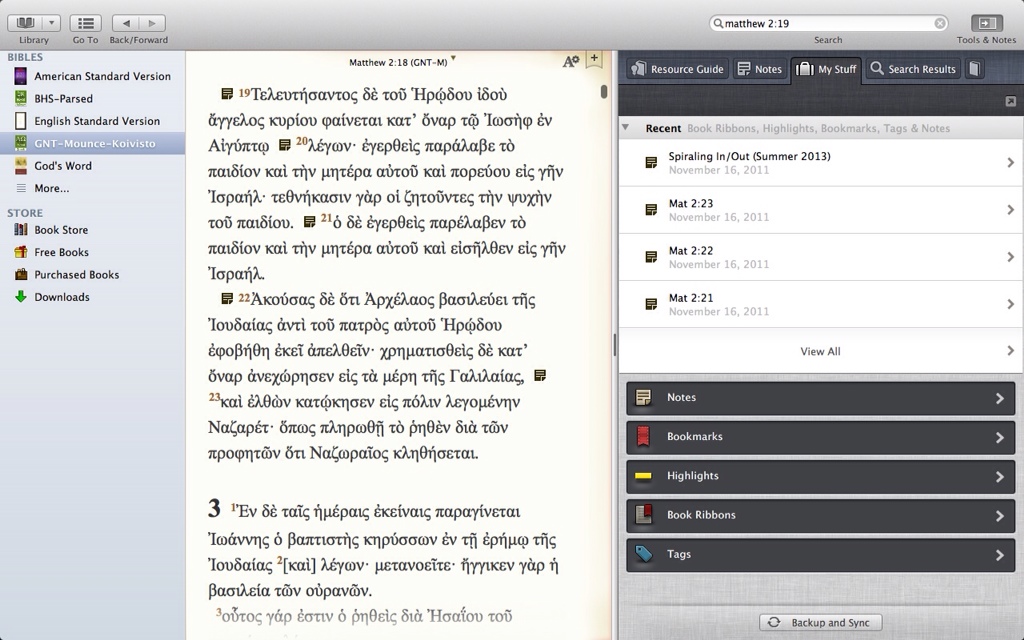
The interface itself bears a strong resemblance to the iPad Bible Reader. The beautiful parchment background and attractive widgets make for an inviting display. The app is also fully compatible with Lion and can take advantage of Lion’s full screen mode, which creates a distraction-free environment that is pleasing to the eye. Perhaps the only downside to the default UI is the inability to hide the library, which is always open on the left and takes up some valuable real-estate. I’d like to see the ability to hide and show that panel added to the app (note: Stephen Johnson at olive tree has showed me that you can, indeed, hide the library through a menu option).
Users of the mobile app should have no trouble figuring out the features of the desktop Bible Reader. Font Controls, and book ribbons are easily identifiable, and the search box is pervasive and context aware – it recognizes the difference between searching for a Bible Reference and a word or syntactical search. The absence of Olive Tree’s grid method for accessing specific verses is a good decision. On a touch screen it is elegant, but with a touchpad or mouse it would feel limiting.
Tools are accessed by clicking the “Tools & Notes” button next to the search bar. This slides open a panel on the right of the screen which contains a veritable swiss army knife of tools to use. In the panel a parallel Bible can be opened, user notes and highlights can be displayed, search results can be examined, and bookmarks and ribbons can be accessed. In addition to the individual tools, this panel can also display Olive Tree’s “Resource Guide.” This tool brings up a list of every tool that mentions the active verse in the main panel. Commentaries, lexicons, user notes, maps, charts, names, study Bibles, an related verses are all displayed in a well-thought organization. My only problem with the “Tools and Notes” panel is the inability to show more than one tool at a time. It would be nice, for example, to show a Lexicon or Parallel Bible (or Bibles) in addition to user notes and the main text. The additional screen real-estate opens up the room for a more customizable interface, and I’d like to see it implemented as development continues.
Screen real-estate may also be under-utilized in the way that notes and parsing information is access directly from the main text. As in the touch version of Bible Reader, the user must click the appropriate word or icon to display a pop-up window which contains the desired information (often with a button to further expand details in another resource). The animation and display of the information is well-done, but the ability to “dock” such pop-up information into a pervasive block-element would be nice. Again, on the mobile side of development such a feature isn’t possible, but in a realm where a mouse pointer is still present (for now) an auto-updating space with some contextual information would be a good use of space. I would also appreciate the option to display all notes for a chapter at once, synced to the main text. This would also for a commentary reading of one’s notes – the current model of “one note at a time” makes it more difficult to use BibleReader’s notes feature to track the flow of a text. This is something I’d love across the Olive Tree ecosystem, however, and not only on the desktop client.
One place where Olive Tree absolutely shines is in sync. Here their mobile expertise does them a great service. Olive Tree has it’s own sync service which passes user data between devices, and it works splendidly. A user note typed on an iPad, for example, automatically is transferred to a phone or desktop. This is cloud computing at it’s best!
What Olive Tree has brought to the desktop is a well-adapted version of it’s iPad experience which is a pleasure to use for quick tasks and reading. There is no clutter, options are clearly marked, and the tools are powerful. It’s lack of an ability to customize may lead to some frustrations for power users, however, and I’d like to see some more customization features added in the future. For a first move into the desktop realm, however, Olive Tree’s Mac Bible Reader is an impressive start.
*Disclosure* I am a beta tester for Olive Tree’s desktop app, and have been a beta tester for their iOS app in the past. As such, in the past, I’ve received access to tools in order to test features. For the desktop beta I’ve only received access to early builds of the application.
Discover more from Painfully Hopeful
Subscribe to get the latest posts sent to your email.

FYI, you can use menu->view->Hide Sidebar to close the library on the left.
How on Earth did I miss that? Thanks for the FYI…
Hi,
I’ve downloaded the App store version. I had a real job downloading my content and the app often crashed. Now it crashes withing second of each startup. I’ve uninstalled and reinstalled. It seems that there are some files left somewhere even when the app is deleted. You wouldn’t happen to know where that is as I just cannot find it and want to do a complete uninstall before I reinstall.
many thanks
Simon
Simon, that’s really odd. The files are in the “library” in your user folder. Here’s how to get to them:
You’ll have to download your stuff again – I know it was swamped over the weekend, I couldn’t get most of my modules either when I installed the release version, I don’t think they were quite expecting the load they had to deal with!
Hope this helps!
many thanks! worked great. However, the programme is still buggy in my opinion. It crashes when searching, doesn’t remember what resources you have downloaded. I do really like it though. It’s not as bloated as the bigger bible programmes.
Two things:
1. Have you submitted bug reports to Olive Tree?
2. When you do submit bug reports to OT can you give context for those bugs?
For example I don’t know what you mean by not remembering the downloaded modules. If you meant that it didn’t remember after you deleted the file I told you to delete that’s because you deleted your downloaded library when you got rid of it, if your encountering another situation where it’s happening it’s something they need to hear.
What context is search crashing the app? I’d like to try and break it and, the developers really need to hear about it.
Yep, I’ve written to OT. I’m about to download their diag app.
If I tell Biblereader to search the whole bible for “no one will see God” . It stop responding. I get the beachball and even after 5 min it’s still beachballing.
When you download the modules it tells you in your resources window that the module has been downloaded. However, once you navigate away from that window and back it now tells me that I can install the resource even though it is installed. This means I don’t know what’s installed and what isn’t.
Are you talking in the store? That would be an interesting bug… In your library (the left pane) do your resources show up?
If not its new to me, but it sounds like it COULD be a permissions problem. Try opening disk manager and fixing the permissions on your hard drive – I’ve had odd issues like that in the past with other apps and that often fixes them.
And GOOD FOR YOU submitting the bug report!!!!
It’s in the purchased books pane. It says, “Install purchased product” and once installed says, “installed”. But navigating to another pane and going back resets all the buttons to “install purchased product”, even though it is actually installed.
Here’s a way I can get the app to stop responding on my system everytime (I have notified OT). Would be interested if you have the same problem.
If you search for more than 5 words that are often repeated in the bible the app stops responding. ie “as is from at to”