
Last week Luminar 2018 was released, and I was eager to being my experiment of a potential life without Lightroom. Below are my first thoughts on Luminar 2018, which only discuss the developing engine of the software. A full comparison with Lightroom Classic can’t happen until after Luminar’s Digital Assets Manager is released next year.
So, how does developing a photograph in Luminar 2018 compare with Lightroom? See for yourselves. Below are two images exported from the same exposure. The first was developed in Lightroom Classic CC and the second in Luminar 2018. I first attempted to develop these images with the same settings in both Lightroom and Luminar’s RAW development filer, but found that to be a poor methodology. Luminar allows for a much wider range of adjustment and the numbers didn’t match how much the different sliders affected the photo. Instead, I attempted to lean into each application’s strengths and allow them to shine on their own.


Both images are appealing in their own way, but at present I prefer the results I’m able to achieve using Lightroom’s tools. They tend to generate less noise 1 and Lightroom’s color adjustment tools are easier to use. On the other hand, Luminar provides a much deeper way to develop a photo, via a user interface which is so customizable it borders on ridiculous. I’m sure, given enough time, I could make images through Luminar which look as good to my tastes as my Lightroom results.
So why can’t I jump right in and create an image which looks as good as Lightroom right now? Developing a RAW file is pretty much the same no matter what application one uses, right? Well, not so much.
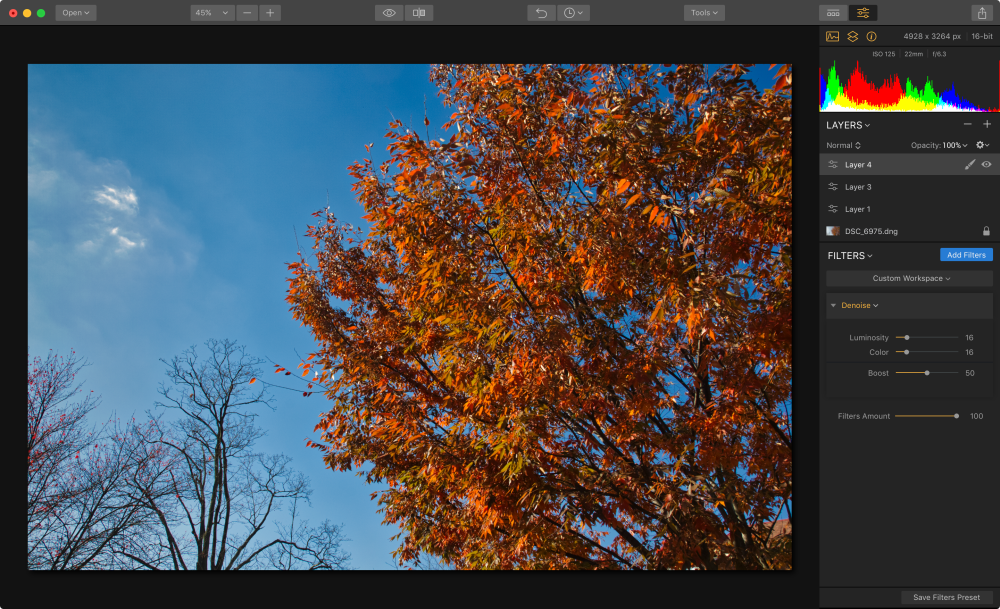
Lightroom’s UI and tools have developed 2 over years, which means a lot of the rough edges have been sanded down to smooth finish. Lens corrections and color adjustments, for example, can both be automated. Lightroom comes with a good database of lens corrections to handle both distortion and chromatic aberration with a simple check box, but in Luminar these have to be applied by hand. In similar fashion, color adjustments can be applied by clicking on a particular tone and dragging up or down, causing the selected value to be altered with the movement. In Luminar, however, there is no such spot sampling, leaving the user to drag values on their own in order to arrive at the color profile they want.
In simple terms, for me to use Luminar well I have to know a great deal more about how corrections work. For basic RAW developing this isn’t an issue, I get how to adjust white balance, contrast, shadows, highlights, and white and black levels. This is easy for me. Some of the more advanced adjustments, however, are beyond my area of expertise. I’m OK at handling lens distortion, though I do have a tendency to over adjust, but I have never corrected chromatic aberration by hand. I’m also a bit off when it comes to adjusting colors by sight, as I tend to make blues a bit more purple when left to my own devices. I appreciate how Luminar requires more understanding, and by using the application I’m going to have to learn a number of new skills 3, but right now Lightroom is easier.
While Adobe’s offering wins the “ease of use” struggle, Luminar 2018 does have a number of strengths unmatched in the former application. It’s not as fast as Lightroom 4, but it is powerful. Luminar allows for adjustments to be made to an image through different layers 5. Upon each layer any number of filters may be added. The flexibility of this approach is amazing so much so, should I get used to the way Luminar 2018 works, I picture Adobe Photoshop becoming almost irrelevant. I’d never have to leave Luminar 2018 unless I was dealing with some detailed masking. And even then Luminar is capable of handling a lot. The interface can be a bit overwhelming, but the sheer power of it is appealing.
Is Luminar “there” yet? For me, not quite. But it’s close. The speed of the rendering engine needs to be increased by several magnitudes, and some of the automation offered in Lightroom needs to find it’s way into Luminar’s interface, but I’m excited to see what’s in store for the application’s future. I’ll have to see what MacPhun has planned for Luminar’s DAM to see how it fares as a true Lightroom replacement, but it’s already worth a look for anyone who is interested in this offering.
Discover more from Painfully Hopeful
Subscribe to get the latest posts sent to your email.
